Contents:

Task 1: Write a bash script createDirectories.sh i.e. using either Loops or command with start day and end day variables using arguments to create a specified number of directories with a dynamic directory name.
Task2: Create a Script to backup all your work done till now.
Task 3: What is Cron and Crontab, to automate the backup Script?
Task4: What is User Management?
Task 5: Create 2 users and just display their Usernames.
Write a bash script createDirectories.sh i.e. using either Loops or command with start day and end day variables using arguments to create a specified number of directories with a dynamic directory name.
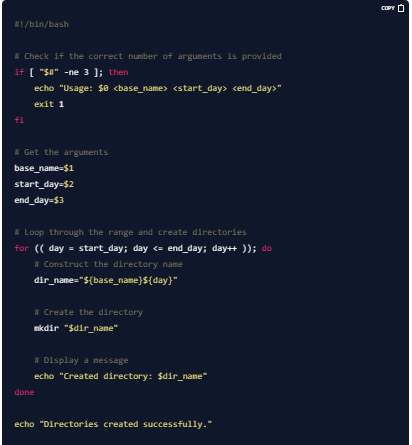
Let's break down the script step by step:
#!/bin/bash: This is called a shebang and it tells the system that this script should be executed using the Bash shell.if [ "$#" -ne 3 ]; then ... fi: This checks if the script was called with three arguments (base name, start day, end day). If not, it displays a usage message and exits.base_name=$1,start_day=$2,end_day=$3: These lines store the provided arguments in variables.for (( day = start_day; day <= end_day; day++ )); do ... done: This is a loop that iterates from the start day to the end day.dir_name="${base_name}${day}": This constructs the directory name by combining the base name and the current day number.mkdir "$dir_name": This creates the directory using the constructed name.echo "Created directory: $dir_name": This displays a message indicating that the directory was created.echo "Directories created successfully.": This prints a final message once all directories are created.
To use the script, save it in a file named createDirectories.sh, and give it execute permissions using chmod +x createDirectories.sh, and then run it.
Task2: Create a Script to backup all your work done till now.
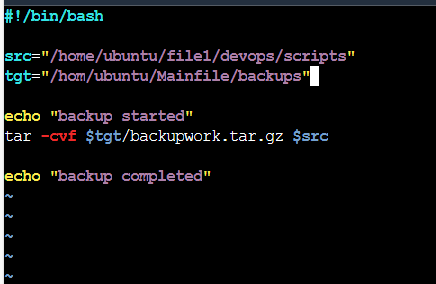
Here breakdown of above is:
1.src is your source file that is file for which backup to be done.
2.tgt is your target file where back needs to be kept
3.$tgt/backupwork.tar.gz: This is the name and location of the archive file you're creating. $tgt is a variable that contains the path to the directory where you want to save the archive. backupwork.tar.gz is the name of the archive file, which is compressed (that's what .gz indicates).
4.$src: This is a variable that contains the path to the source directory whose contents you want to archive.
5.-c: This option tells tar to create a new archive.
6.-v: This option stands for "verbose." It tells tar to list the files it's adding to the archive, so you can see what's happening.
7.-f: This option is followed by the name of the archive file you want to create. It stands for "file."
Task 3. What is Cron and Crontab, to automate the backup Script?
Cron jobs are very important and a part of Day to Day activities of a DevOps Engineer.
Cron:
Cron is a time-based job scheduler.It allows you to schedule tasks or commands to run at specific intervals or times automatically. These tasks can include anything from running scripts, performing system maintenance, sending emails, and more.
Crontab is a command used to interact with the cron daemon (scheduler). It allows you to view, edit, and manage the scheduled tasks (also known as cron jobs) that you want to run automatically at specified times or intervals. A crontab file contains lines of instructions, each representing a scheduled task, along with its timing details.
to automate the backup Script:
Step 1: Create a Backup Script Write a script that performs the backup. This script should copy your important files or directories to a backup location. Save this script in a location where you'll remember, such as /home/user/backup_script.sh. Make sure the script is executable by running chmod +x /home/user/backup_script.sh.
Step 2: Open Your Crontab Crontab is the tool you'll use to schedule when the backup script runs. To open your user's crontab, open a terminal and run:

Step 3: Add a Cron Job In the crontab file, each line represents a scheduled task. To schedule your backup script, add a line like this:

/home/user/backup_script.shis the path to your backup script.
This example means the backup script will run every day at 2 AM.
Step 4: Verify To verify that the cron job was added successfully, you can list your current cron jobs by running:

Task4. What is User Management?
User management in Linux refers to the process of controlling and organizing the users who have access to a Linux system. It involves creating user accounts, assigning them permissions, and determining what files and commands they can access. Here are some key points about user management in simple words:
Creating Users: You can add new users to the system, giving them their own space and access rights.
Setting Permissions: Each user can have different permissions, which control what they can do. For example, some users might be able to install software, while others can only view files.
Groups: Users can be organized into groups. A group contains multiple users, and you can set permissions for the whole group, making it easier to manage permissions for many users at once.
Passwords: Users have passwords to keep their accounts secure. Only the user (and administrators) should know their password.
Home Directories: Each user gets a personal space in the system, known as their home directory. This is where they store their personal files and settings.
Superuser (root): The superuser, also known as "root", has special permissions to do anything on the system. This account is used for system administration tasks.
User Management Commands: Linux provides commands like
useradd,usermod,passwd, andgroupaddto manage users and groups from the command line.
Task 5: Create 2 users and just display their Usernames.

Note- If there is permission issue, then use command "sudo".

-F:sets the field separator to:, since/etc/passwduses:to separate fields.($1=="user1" || $1=="user2"){print $1}is anawkpattern-action statement. It checks if the first field ($1) is either "user1" or "user2". If the condition is true, it prints the first field, which is the username.